Any Android FRP Lock Removal – Complete Guide, Official Methods and Solutions
What Is FRP Lock? How to Remove Google Account Verification on Android Phones setp by step
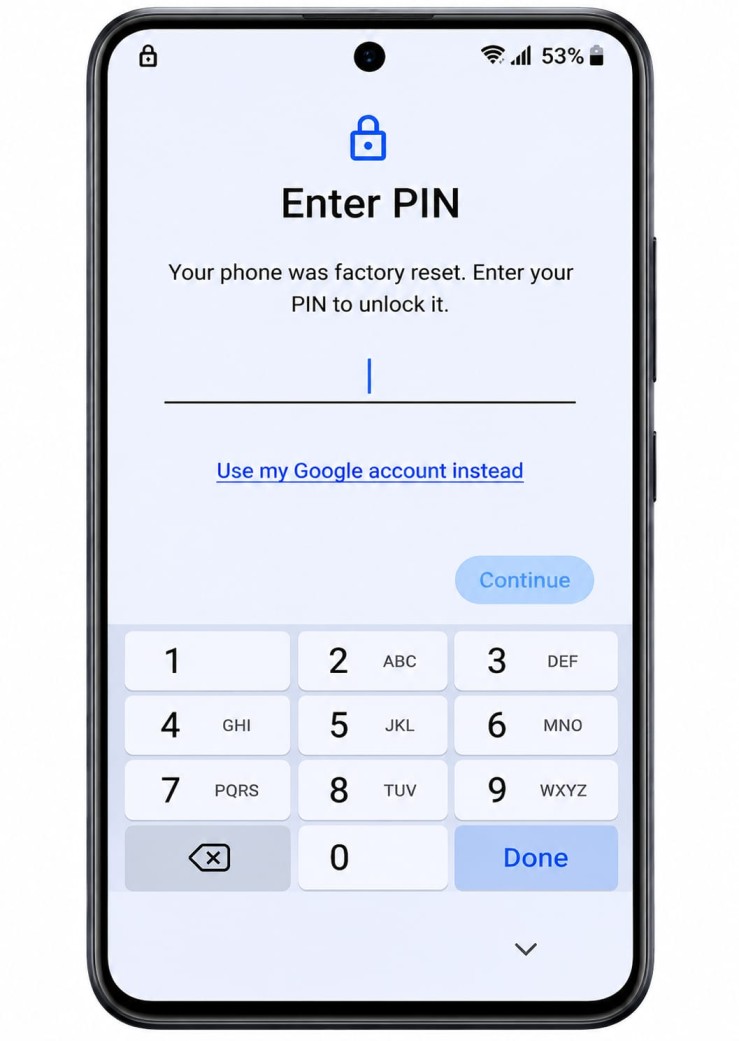
Factory Reset Protection (FRP) is an important security feature available on modern Android smartphones. It is designed to protect personal information and prevent unauthorized access if a device is lost or stolen.
Sometimes, Android users encounter a Google Account Verification screen after performing a factory reset. This can happen when a phone is reset without first removing the previously synchronized Google Account.
In this guide, we will explain what FRP Lock is, why it occurs, how it works, and how to resolve Google Account Verification problems using official methods. We will also discuss important information for mobile repair technicians and Android users.
1. What Is FRP Lock?
FRP stands for Factory Reset Protection. It is a security feature associated with Google Account protection on Android devices.
When a Google Account is added to an Android smartphone and the device is protected by a screen lock, Factory Reset Protection can help prevent unauthorized use after certain factory reset procedures.
If someone performs a factory reset through recovery mode or another unauthorized method, the device may request verification using a Google Account that was previously synchronized with it.
This security mechanism helps protect the original owner’s personal information and makes stolen devices more difficult to reuse.
2. Why Does an Android Phone Get FRP Locked?
An Android smartphone may display Google Account Verification for several reasons.
Common situations include:
- The phone was factory reset using Recovery Mode.
- Someone reset the device without removing the Google Account.
- The device was reset without the owner’s permission.
- The phone was purchased second-hand without the previous owner’s account being removed.
- The user cannot remember the previously synchronized Google Account credentials.
When FRP is activated, the phone may display a message asking the user to sign in with a Google Account that was previously added and synchronized with the device.
3. How to Identify an FRP Locked Android Phone
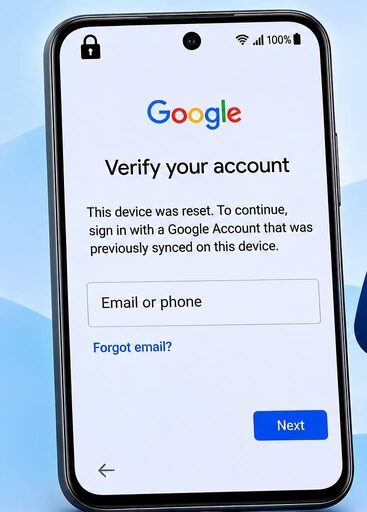
Identifying an FRP-locked smartphone is relatively easy.
After completing the initial Android setup, the device may display a Google Account Verification screen.
Common messages include:
- Verify your account.
- This device was reset.
- To continue, sign in with a Google Account that was previously synced on this device.
If the phone displays one of these messages, it may be protected by Factory Reset Protection.
However, the exact verification screen and wording can vary depending on the Android version and device manufacturer.
4. Official Method to Remove FRP Lock on Android Phones
The recommended way to resolve an FRP Lock problem is to verify ownership using the Google Account previously synchronized with the device.
Follow these steps:
Step 1: Connect the Phone to Wi-Fi
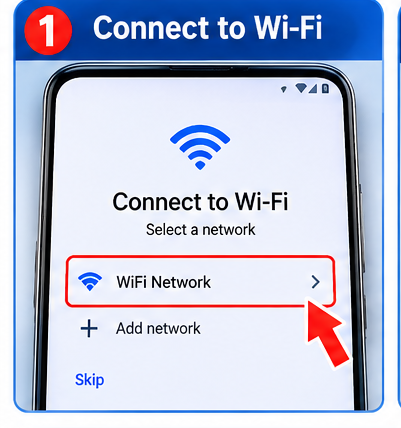
Turn on the smartphone and complete the initial setup until you reach the Google Account Verification screen.
Connect the device to a stable Wi-Fi network.
next and
Step 2: Enter the Previously Synced Google Account
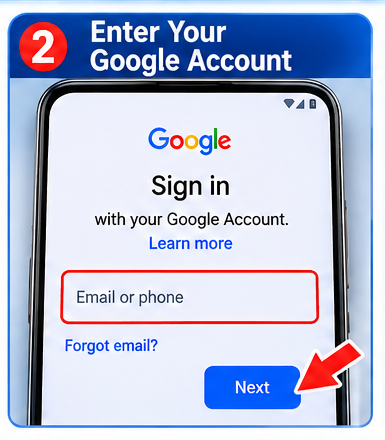
Enter the Gmail address and password that were previously associated with the smartphone.
Make sure you enter the correct Google Account.
A newly created Google Account generally cannot replace the previously synchronized account during FRP verification.
Step 3: Complete Google Account Verification
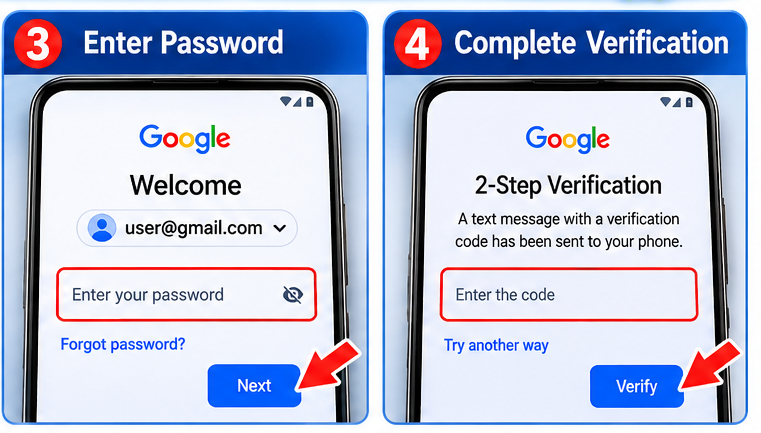
Follow the instructions displayed on the phone.
Depending on the security settings, Google may request additional verification.
Complete the verification process to confirm that you are authorized to use the device.
Step 4: Complete Android Setup
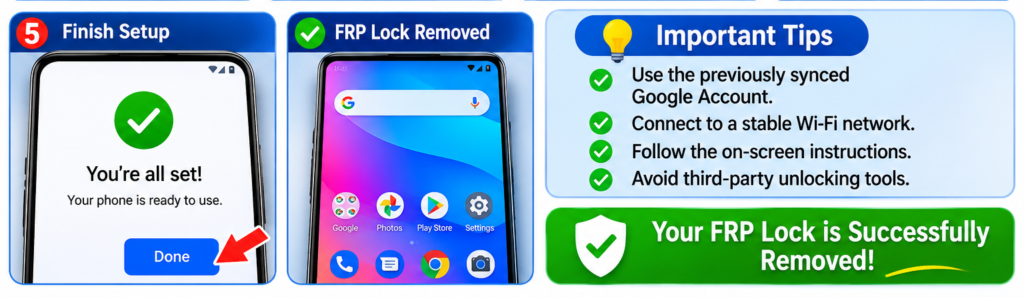
After successful verification, continue with the remaining setup instructions.
You can then access the home screen and use your smartphone normally.
Important: The exact steps may differ depending on the Android version, manufacturer and device security configuration.
5. How to Remove FRP Lock If You Forgot Your Google Account Password
Sometimes, users remember their Gmail address but forget the password.
In this situation, they should use Google’s official Account Recovery service.
Follow these steps:
- Open Google’s Account Recovery page.
- Enter your previously synchronized Gmail address.
- Follow the available account verification instructions.
- Use a previously configured recovery phone number or email address if requested.
- Create a new password after successfully verifying your identity.
- Return to your Android smartphone and follow the Google Account Verification instructions.
Official Google Account Recovery:
https://accounts.google.com/signin/recovery
Note: Google may apply a security waiting period after certain account recovery or password changes. Follow Google’s instructions before attempting verification again.
6. How to Remove FRP Lock From a Second-Hand Android Phone
Buying a second-hand Android smartphone can sometimes lead to FRP Lock problems.
For example, the previous owner may have performed a factory reset without removing their Google Account.
If this happens, contact the previous owner and ask them to remove their Google Account from the device.
The previous owner should:
- Sign in to the device using their Google Account.
- Open Android Settings.
- Navigate to Passwords & accounts, Accounts, or the equivalent menu.
- Select the Google Account.
- Choose Remove account.
- Confirm the removal.
- Perform a factory reset through the phone’s Settings menu.
Menu names may differ between Android versions and manufacturers.
If the previous owner is unavailable, contact the seller or the manufacturer’s authorized service center with valid proof of purchase.
7. How to Prevent FRP Lock Before Performing a Factory Reset
Preventing FRP Lock is easier than resolving it afterward.
Before selling, giving away or resetting an Android smartphone, follow these recommendations:
- Make sure you know the Google Account email address and password.
- Open the phone’s Settings menu.
- Navigate to the Accounts section.
- Select the Google Account.
- Remove the Google Account from the device.
- Remove other relevant screen-lock or manufacturer accounts when required.
- Perform a factory reset from the Settings menu.
Removing the Google Account before resetting the phone helps prevent the next owner from encountering the previous owner’s FRP verification.
8. FRP Lock on Different Android Smartphone Brands
Factory Reset Protection is available across many Android smartphone brands.
However, the interface, account settings and official support procedures may vary.
Here are some popular Android smartphone manufacturers where users may encounter Google Account Verification.
Samsung FRP Lock
Samsung Galaxy smartphones support Google’s Factory Reset Protection.
Users who encounter Google Account Verification should use the previously synchronized Google Account.
If they cannot recover their account, they can contact Samsung’s authorized support service.
Official website: https://www.samsung.com/
Xiaomi, Redmi and POCO FRP Lock
Xiaomi, Redmi and POCO smartphones use Android-based software with Google Account protection on supported models.
Users should verify the previously synchronized Google Account to complete device setup.
If the device also requests Xiaomi Account verification, the owner should use the appropriate Xiaomi account recovery or support service.
Official website: https://www.mi.com/
Vivo FRP Lock
Vivo smartphones may display Google Account Verification after an unauthorized or incomplete factory reset.
The recommended solution is to enter the previously synchronized Google Account.
For additional assistance, contact Vivo’s official support service.
Official website: https://www.vivo.com/
OPPO FRP Lock
OPPO Android smartphones also support Google Account verification.
If an OPPO smartphone becomes FRP locked, the owner should recover and verify the original Google Account.
For device-specific problems, contact an authorized OPPO service center.
Official website: https://www.oppo.com/
Realme FRP Lock
Realme smartphones running Android may also require the previously synchronized Google Account after certain factory reset procedures.
Users should complete Google’s official account verification process.
For further assistance, visit Realme’s official support website.
Official website: https://www.realme.com/
Other Android Smartphone Brands
Google Account Verification may also appear on smartphones manufactured by:
- Motorola
- OnePlus
- Google Pixel
- Nokia
- Tecno
- Infinix
- itel
The official recovery process depends on the device’s software version and manufacturer support.
9. Important Information for Mobile Repair Technicians
Mobile repair technicians may frequently encounter FRP Lock problems when repairing customer smartphones.
Before working on an FRP-locked device, technicians should verify that the customer is the legitimate owner.
Here are some important recommendations:
- Ask for valid proof of device ownership.
- Never attempt to access someone else’s personal Google Account.
- Explain the official account recovery process to customers.
- Contact the manufacturer’s authorized service center when necessary.
- Avoid suspicious third-party APK files and unknown unlocking software.
- Do not promise that every FRP-locked device can be unlocked through the same procedure.
FRP is a security feature, and its verification requirements may vary depending on the Android version, manufacturer and security updates.
10. Frequently Asked Questions About Android FRP Lock
Q1. What does FRP stand for?
FRP stands for Factory Reset Protection. It is an Android security feature designed to help prevent unauthorized access to a device after certain factory reset procedures.
Q2. Can I remove FRP Lock without the previous Google Account?
The normal official method requires verification using a previously synchronized Google Account. If you cannot access that account, use Google’s Account Recovery service or contact an authorized service center with proof of ownership.
Q3. Does a factory reset remove FRP Lock?
No. Performing another factory reset generally does not remove an existing FRP verification requirement.
Q4. Can a new Google Account unlock an FRP-locked phone?
Generally, no. During FRP verification, the device requests an eligible Google Account that was previously synchronized with it.
Q5. Does FRP Lock affect all Android smartphones?
FRP availability and implementation depend on the Android version, device configuration and manufacturer. Many modern Android smartphones support this security feature.
Q6. Can mobile repair technicians resolve FRP problems?
Technicians can help customers identify the problem, recover their Google Accounts and contact authorized service providers. Any service involving account verification should respect device ownership and security requirements.
Q7. How can I prevent FRP Lock before selling my phone?
Remove your Google Account from the device through Android Settings before performing a factory reset. This helps prevent the next owner from encountering your previous account’s verification.
Conclusion
Factory Reset Protection is an important Android security feature that helps protect smartphones against unauthorized access after a factory reset.
Although FRP Lock can be frustrating for users who forget their Google Account credentials, the safest solution is to recover and verify the original account.
Before selling or resetting an Android smartphone, always remove the Google Account through the device settings.
Understanding how FRP works can help both Android users and mobile repair technicians troubleshoot Google Account Verification problems safely and correctly.